


Design Studio - DIY Art Space
2.949.00 Reviews
App Specs
- Version
- 111.1.1
- Updated On
- License
- Free
- Downloads
- 100,000+
- Developer
- DOSA Apps
- Categories
- Art & Design
- Platform
- Android
Screenshots
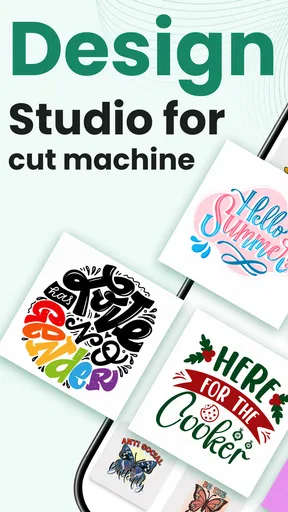
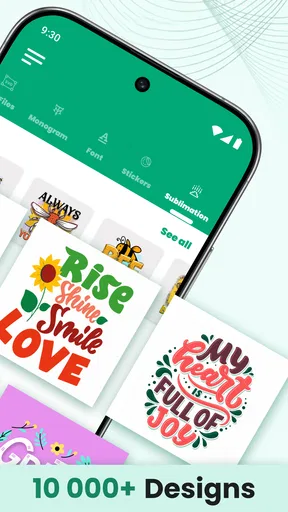
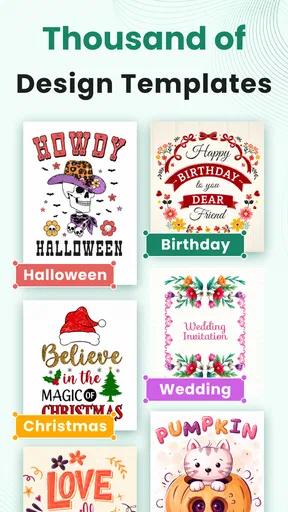
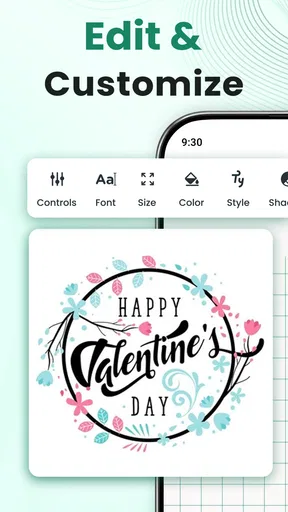
 Analysis by AppCompare
I approached Design Studio - DIY Art Space as a practical design companion rather than a full replacement for desktop cutting software. It is an Art & Design app from DOSA Apps, aimed at people who work with cutting machines, sublimation projects, fonts, and monograms. The central appeal is having ready-made creative material close at hand when an idea appears, especially if I do not want to draw every shape from the beginning.
My overall impression is mixed but useful. The app can shorten the distance between “I need a design for this project” and “I have something to adapt,” yet it also asks the user to be careful about quality, workflow, and purchases. Its average rating is 2.9 from around 193 ratings, so I would not install it expecting a universally polished experience. I see it as a resource library and idea generator first, with enough flexibility to help hobbyists, but not necessarily the best choice for someone who needs a highly refined professional production environment.
What the app is really useful for
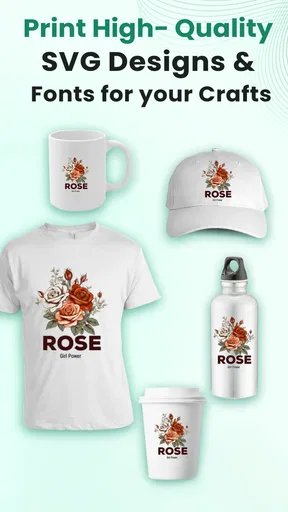
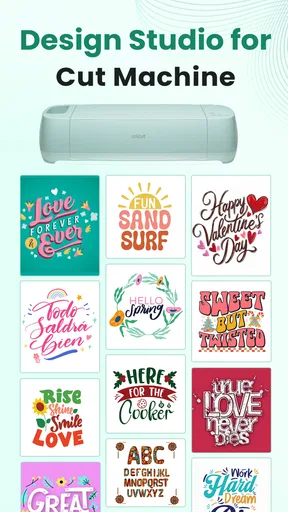
The store summary points to more than a thousand SVG cut files, sublimation designs, fonts, and monograms. In practical terms, that combination covers several common craft situations: preparing a name for a mug, finding a decorative element for a shirt, building a simple decal, or looking for lettering that feels more personal than the default fonts in a cutting-machine application.
I especially like the idea of using it during the planning stage. Instead of opening a blank canvas and trying to invent a complete composition, I can browse for a starting point, save the general direction in my head, and then recreate or adjust the project in the software connected to my machine. That makes the app more valuable to beginners than to experienced designers who already maintain a large personal library.
There is also a useful distinction between an SVG cut file and an ordinary image. A cut-ready vector design is more suitable for separating shapes and sending them toward a cutting workflow, while a sublimation graphic may be intended for printing rather than cutting. I would not treat every item in the same way. Before committing material, I would check whether the design is appropriate for the intended process, whether small details are practical to cut, and whether the lettering remains readable at the final size.
That last check matters more than it sounds. A design that looks attractive on a phone can become frustrating when reduced for a small label or enlarged for a shirt. Thin lines, narrow gaps, and tightly packed letters can create weeding problems. My advice is to use the app for selection and inspiration, then inspect the chosen artwork at the actual project dimensions before wasting vinyl, transfer paper, or fabric.
A realistic weekend workflow
Imagine I am making personalized tote bags for a family gathering. I might begin by searching through monograms or decorative lettering, choose a style that matches the recipient, and use the result as the visual base for the project. I would then move to my usual cutting software to check the size, mirror the design when required for heat transfer, separate colors, and test the smallest details.
Worth Reading Before You Choose

EA SPORTS FC Mobile 26 Is a Bigger Football Game, but It Takes Time

Flipboard Shows What News Apps Must Do Beyond the Feed

Switching to Android Auto Means Rethinking Your Driving Routine

Google Calendar Makes a Crowded Week Easier to Manage

Ludo King Makes the Most of the Minutes Between Plans

Baby Panda World Brings Quick Play to Modern Phones, but Its Game Library Feels Busy
In that scenario, Design Studio - DIY Art Space saves time at the idea stage, but it does not remove the responsibility of preparing the file correctly. I would keep the first test on inexpensive material. This is one of the app’s important trade-offs: convenience comes from starting with prepared artwork, while control still depends on the tools I use afterward.
For a beginner, that can be a comfortable learning path. The app gives me examples of how lettering, borders, and decorative shapes can work together. For an experienced maker, the benefit is narrower: it may fill a gap when I need a quick motif, but I would still prefer a dedicated editor for precise node editing, layering, cleanup, and production checks.
Where it fits beside familiar alternatives
Most cutting-machine ecosystems already include some form of design library or built-in canvas. Those tools usually have the advantage of a direct path from design to machine. A separate app such as this one can be more appealing when I want to browse independently, collect ideas away from the machine, or look beyond the standard selection in a single platform.
The disadvantage is the extra handoff. I may need to move from the app into another program, confirm compatibility, adjust scale, and possibly rebuild part of the composition. A general drawing app offers more control over illustration, while a professional vector editor is stronger for precision. A marketplace may provide a wider range of individual files, but browsing and licensing can vary from one seller to another.
That makes this app best suited to a middle ground. It is more focused than a blank drawing canvas, but less complete than a full production suite. I would recommend it to someone who wants a source of craft-ready ideas and understands that the final preparation may happen elsewhere. I would skip it if my main requirement is an all-in-one workflow with advanced editing and a guaranteed direct connection to a particular machine.
Trust, controls, and careful use
When I review a design app, I do not judge trust only by how attractive the catalog looks. I also want to understand what I can control as a user, when money may be involved, and how much care is needed before I bring a design into a personal or commercial project. Design Studio - DIY Art Space is free to install, but it includes in-app purchases ranging from $0.99 to $99.99 per item. That wide range makes it important to slow down before confirming any purchase.
I would treat the free installation as an opportunity to inspect the browsing experience, not as a promise that every useful resource is included without charge. I would first identify what is accessible at no cost, then decide whether a paid item solves a real problem. For a casual project, paying for a single design may be reasonable; for repeated commercial work, the larger purchase options deserve much more scrutiny because the total value depends on how often I will actually use the material.
Another practical point is licensing. A file being available inside a design app does not automatically tell me how it may be used on products for sale, client work, or downloadable bundles. Before selling a shirt, mug, or transfer made from any design, I would read the applicable usage terms shown in the app or associated purchase flow. If I cannot understand the permitted use, I would keep the design for personal crafting rather than assume commercial rights.
The app is marked for Everyone, which makes it approachable for a broad audience. That age label is helpful as a basic content signal, but it does not answer every question a parent or privacy-conscious adult may have. I would still review the permissions and privacy choices presented on my own device, particularly if the app requests access that seems unrelated to browsing design resources.
Permissions and data-sensitive moments
Permissions are easiest to evaluate at the moment they appear. I would read each request instead of accepting it automatically, and I would ask whether the requested access is necessary for the action I am trying to perform. Browsing a library and creating a monogram are different activities from importing a photo, saving a finished file, or sharing a project, so I would expect my choices to depend on the workflow.
If I use a personal photograph for a sublimation project, I would be more cautious than when I am simply looking at sample artwork. Personal images can contain faces, children, addresses, handwritten notes, or other identifying details. I would avoid uploading anything sensitive unless I had read the relevant in-app explanation and was comfortable with the available controls. For a simple name design, I would use the minimum information needed and avoid adding unnecessary personal details.
I also recommend checking the device’s permission manager after installation and again after an update. The current version is 111.1.1, and reviewing controls after updates is a sensible habit for any app that handles creative files or personal images. I am not treating an update as evidence of a problem; I simply prefer to confirm that my choices still match what I intended.
When a purchase screen appears, I would inspect the item name, amount, and confirmation step carefully. A large catalog can encourage quick browsing, and quick browsing can turn into an accidental purchase if I tap through without reading. I would also keep purchase authentication enabled on my device, especially if children or other family members use the same phone or tablet for craft projects.
How much control the user has
User agency is strongest when I make deliberate choices about files, permissions, and the next step in the workflow. I would keep downloaded or exported artwork organized by project rather than mixing everything in one folder. A simple naming pattern such as “tote-name-test” or “mug-final-size” helps me distinguish an experiment from a production file and reduces the chance of cutting the wrong version.
I would also avoid treating the app’s preview as a final quality check. A preview can help me judge style and composition, but the connected cutting or printing process introduces its own constraints. Before production, I would verify the file in the destination software, confirm the material settings, and check whether the design contains unnecessary tiny pieces. This is a small workflow habit, but it protects both time and supplies.
There is another subtle trade-off with fonts and monograms. Personalization feels simple when I can choose a name and a decorative style, yet a font that works for one name may not work for another. Letters with enclosed spaces, narrow joins, or elaborate flourishes can behave differently during cutting. I would test the actual word or initials rather than assuming the sample preview represents every possible result.
For shared devices, I would keep account and purchase decisions separate from casual browsing whenever possible. If the app presents sign-in or account controls, I would use only the account arrangement I understand and would avoid sharing credentials. I would also check whether there are clear options to manage saved content or purchases from within the app or through the device’s standard settings. The important principle is simple: I want to know which action is browsing, which is saving, and which creates a financial commitment.
Strengths that are easy to overlook
The first less-obvious strength is its usefulness before the design phase. I can use a catalog of SVGs, fonts, and monograms to compare visual directions before opening a more complicated editor. That reduces decision fatigue when I know the type of project but not the style.
The second is the way the different resource types can support one project. A monogram may provide the central identity, a font can help add a name, and a decorative cut file can fill the surrounding space. I would not necessarily use the assets exactly as presented; I would treat them as building blocks and simplify the combination if the final material demands it.
The third is that the app can help beginners learn production judgment indirectly. By seeing designs that vary in density and detail, a new maker starts to notice which shapes are likely to weed cleanly and which may be troublesome. That educational value is not the same as a tutorial, but it can develop through repeated comparison and small tests.
There are limits to each of these strengths. A large collection can make browsing slower mentally, because more choices do not automatically mean better choices. I would decide on the project’s material, finished size, and audience first, then browse with those constraints in mind. Otherwise, it is easy to choose a beautiful design that is impractical for the job.
Who should install it, and who should pass
I think the best audience is a hobbyist who makes shirts, labels, gifts, decals, mugs, or similar craft projects and wants more starting points than a blank canvas provides. It is also a reasonable option for someone learning about SVGs, sublimation artwork, fonts, and monograms, provided they are willing to verify the technical details in their regular design software.
I would be more cautious about recommending it to a professional seller who needs predictable licensing, consistent file preparation, and a streamlined production pipeline. That person may be better served by a dedicated vector editor, a machine maker’s integrated design platform, or a specialized marketplace with clearly documented usage terms. The app can still provide inspiration, but inspiration alone may not justify adding another step to a high-volume workflow.
I would also skip it if I only want free, unlimited resources and do not want to encounter purchase decisions. The free price makes trying it low-risk financially at the start, but the presence of paid items means I would not hand the device to a child without purchase protections. Anyone working with confidential client artwork should likewise review permissions and data choices before importing files.
Device requirements and everyday practicality
The app requires Android 8.0 or later, so compatibility should be checked before installation on an older phone or tablet. On a suitable device, I would use it in short sessions: browse while planning, shortlist a few options, and then move the selected concept into the software that controls my actual project.
That approach is more efficient than endlessly scrolling. I would save only designs that fit a specific purpose, note the intended material, and make a quick test before committing to a large batch. If I am preparing several personalized items, I would establish one lettering style first and change only the names or initials. This keeps the finished set visually consistent and exposes font problems early.
The app’s current version is 111.1.1, and the developer is DOSA Apps. Those details identify the product I am discussing, but they do not replace my own checks of compatibility, permissions, purchase screens, and file handling. I would make those checks on the device I plan to use, because the experience can depend on the operating system and the rest of my craft setup.
My cautious verdict
Design Studio - DIY Art Space is a useful source of design material for the right kind of maker. I like it most as a browsing and inspiration tool that can supply a starting point for SVG projects, sublimation work, fonts, and monograms. It can make a beginner’s first steps feel less intimidating, and it may help an experienced hobbyist escape a creative block.
At the same time, I would not confuse a resource library with a complete design-and-production system. I would inspect files at their intended size, test difficult details, confirm usage rights, and prepare the final project in software suited to my machine. I would also keep a close eye on permissions and in-app purchases, especially when personal images or a shared device are involved.
The average rating of 2.9 from around 193 ratings makes me recommend a measured trial rather than an automatic endorsement. Install it if you want a focused collection of craft ideas and are comfortable doing the final quality and privacy checks yourself. Skip it if you need advanced editing, a direct machine workflow, or a completely purchase-free experience. For me, the deciding question is whether the app’s ready-made starting points save more time than the extra checking and handoff require. Used with that realistic expectation, it can be a handy creative shelf, but it should not be the only tool in a careful maker’s workflow.
Pros
- Simple tools make it easy for beginners to start creating.
- Supports relaxing
- low-pressure creative sessions.
- Color and decoration options encourage personal expression.
- Suitable for short play sessions on most mobile devices.
- Regular creative tasks can provide a satisfying sense of progress.
Cons
- Some advanced tools or content may require in-app purchases.
- The experience can feel repetitive after completing similar projects.
- Small interface controls may be awkward on compact screens.
- Limited depth may disappoint users seeking professional art software.
- Ads may interrupt the creative flow in the free version.
FAQs for Design Studio - DIY Art Space
What is Design Studio - DIY Art Space?
Design Studio - DIY Art Space is a creative app focused on digital drawing, painting, and artistic experimentation. It provides a virtual workspace where users can create illustrations, decorate designs, and explore different visual ideas without needing physical art supplies. The app is suitable for casual creators, beginners, and anyone who enjoys making personalized artwork on a mobile device.
Is Design Studio - DIY Art Space suitable for beginners?
Yes, the app is generally approachable for beginners because its creative tools are designed for experimentation rather than professional-level production only. New users can start with simple drawing and decorating activities, test colors and effects, and gradually become familiar with the interface. However, users who want advanced editing controls may need some time to understand all available options.
What can users create in Design Studio - DIY Art Space?
Users can create a variety of digital artwork, including colorful drawings, decorative compositions, personalized designs, and other DIY-style projects. The experience encourages creativity through combinations of colors, brushes, patterns, and visual elements. The exact possibilities depend on the tools and content included in the current version, so available creative options may change after updates.
Does Design Studio - DIY Art Space work offline?
Some creative functions may be available without a constant internet connection, particularly if the necessary app content has already been installed. Nevertheless, internet access may be required for downloading additional resources, displaying advertisements, receiving updates, or using any sharing-related features. It is best to open the app once online before traveling or working in an area with limited connectivity.
Is Design Studio - DIY Art Space free to download and safe to use?
The app may be available as a free download, although certain features, content, advertisements, or optional purchases can depend on the version and platform. Before installing, users should review the store listing for pricing and in-app purchase details. For safety, download it only from the official Google Play Store or Apple App Store and check the requested permissions and privacy information.


